

Man, we are back again with a new and brand-new guide! So, what are we seeing today? The problem in Tachiyomi. We’ve downloaded it, so first of all, let me show you how to fix it properly. I’ve downloaded Tachiyomi from here because, I don’t know, maybe they have removed every application from their main website. So, it’s a GitHub one, and I will give you this link too in the description.
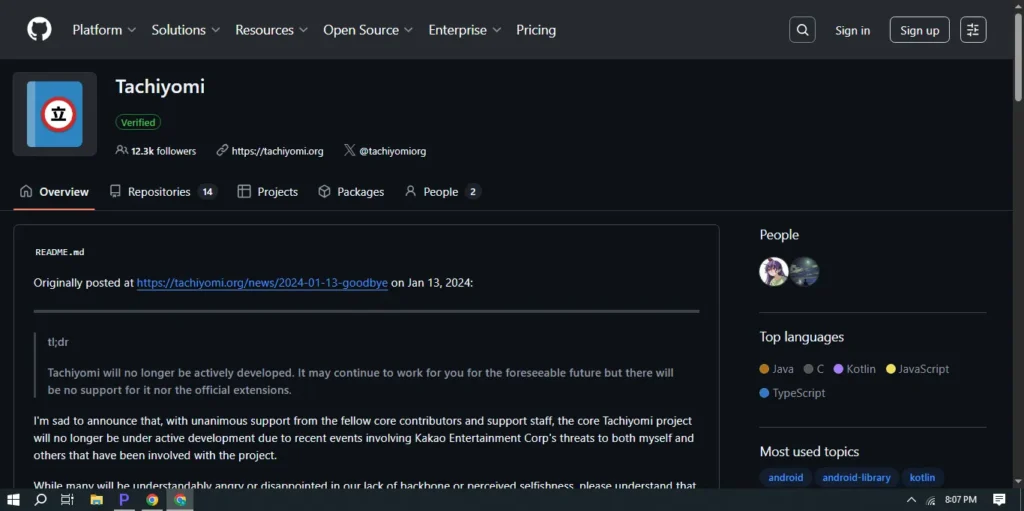
Downloading Tachiyomi from GitHub
Since Tachiyomi might not be available on its main website anymore, the safest place to get it is from GitHub. Once you’ve downloaded it, the next step is to open it.
Now, you’ll have to select a folder here. You can either allow access and make a new one, or if you already have one like me — I have the “Tachiyomi” folder — you can simply select it. We don’t need a guide for this because you already have me walking you through it.
Granting Permissions
After choosing your folder, Tachiyomi will ask for permissions. Just grant every permission it asks for — do it as they say. Once all permissions are allowed, move to the next step and click Get Started.
Restoring Backup (If You Have One)
The next screen might ask to Restore Backup, but in my case, it doesn’t have any backup right now. If you see the same thing, don’t worry — that’s normal for a fresh installation.
However, here comes the issue: when you go to the Extensions tab, you’ll see there aren’t any extensions available. That’s the main problem we’re fixing today.
Adding the Missing Extensions
To fix this, go to Download Settings, then open Settings, and from there go to Source Extension. This is where you have to add the repositories (also called “repos”).
For that, I have a repo that I’ve taken from GitHub. I will also give you the GitHub link and this repo in the description. You just have to put this extension URL in the field provided.
The most important thing here is that the repo must be in JSON file format — that’s what Tachiyomi reads.
So yeah, that’s it! Once you’ve added the JSON link, you’re done with the setup part.
Restarting Tachiyomi
After adding the repo, go back to your browser and you might see that it doesn’t work yet. Don’t panic — this is expected.
What you have to do now is restart Tachiyomi. Close the app completely and open it again.
Now go back to the Extensions tab — and there you go! You’ll finally see your shabby-shabby extensions appear. The list might look familiar, but hey, it’s working now!
Downloading Your Favourite Manga Source
Now that everything is set, it’s time to get your favorite manga sources. Just go and search for the source you love, like MangaDex, MangaBox, or MangaHere.
For me, MangaBox is my favorite, so I’m going to download that one. It doesn’t take much time, especially since I’m using a new phone — actually, it’s not mine, it’s my brother’s one!
Trusting and Using the Extension
Once downloaded, you have to trust the extension. After doing that, you’ll be able to use it right away.
Now here we are — our extension is ready and working perfectly. You can start seeing your favorite mangas like One Piece, add them to your library, and start reading.
If you go to your Library tab now, you’ll see One Piece added there. Start reading and enjoy! (Don’t worry, I’m not going to give any spoilers.)
Final Thoughts
And that’s it, my friend! I hope this guide is going to solve your video errors or any issues you were facing with Tachiyomi extensions.
That’s all for today — hope it helped you fix everything. Give a like and subscribe to Fraser XD, man!
What’s the safest place to download Tachiyomi?
The official GitHub Releases page for Tachiyomi is the safest source. Verify you’re on the real project org/account, download the latest stable APK, and avoid random mirrors or “modded” builds. Tachiyomi isn’t on the Play Store.
Why are no extensions showing after a fresh install?
Common reasons include: first-run configuration not complete, the default repository isn’t loaded in your build, network/DNS blockers are interfering, or you haven’t added a repository JSON yet. Add a trusted repo JSON, then restart the app.
How do I add a JSON repository for extensions?
Menu names vary by version/fork, but generally: Settings (or Browse) > Extensions (or Source extensions) > Repositories > Add. Paste the repository URL that points to a JSON index file. Only use repos from maintainers you trust, then restart Tachiyomi.
Is it safe to “trust” an extension?
Trust prompts warn that third‑party extensions can run code. Only install from reputable, open‑source repos and maintainers. Review the extension’s source when possible. If you don’t recognize the source, don’t install it.
Which sources are legal to use with Tachiyomi?
Use sources that offer content legally (e.g., your region’s licensed services or free, authorized catalogs). Many community repos index third‑party sites that may host copyrighted material; always follow your local laws and the content owners’ terms.
Where are backups and downloads stored in Tachiyomi
By default: Internal storage/Tachiyomi/backups for backups and Internal storage/Tachiyomi/downloads for chapter downloads (paths can vary by device/version). You can choose a custom folder in Settings so downloads persist if you uninstall.
Can I migrate from a fork (e.g., J2K/SY) to main Tachiyomi?
Yes—export a full backup from your current app, install the new app, then restore the backup. Some UI/feature differences exist; verify your categories, tracking, and downloads after restore.
How do I remove stuck or broken extensions?
In Extensions, uninstall the problem extension, clear app cache, then reinstall from a trusted repo. If it persists, remove and re-add the repo, or wait for the maintainer to push a fix.